




How to Copy a File Name Without the “Copy” Suffix
You duplicate a file, and suddenly you have “Report – Copy” sitting next to “Report.” Now you need to copy the name, clean it up, or reuse it somewhere else.
Table Of Content
- How to Copy a File Name Without the “Copy” Suffix
- What Does “Name Copy” Actually Mean?
- How to Copy a File Name on Windows
- Rename Shortcut (Fastest)
- Copy as Path
- Copy Several Names at Once
- How to Copy a File Name on Mac
- How to Copy a File Name in Google Drive
- How to Remove “Copy” From a File Name
- Best Practices for Naming Duplicate Files
- Copying Names in Spreadsheets, Databases, and Code
- Final Thoughts
- Frequently Asked Questions
Most people try to select the text with the mouse and fail. There are faster ways, and they differ by system.
This guide covers how to copy a file name, how copy suffixes work, and how to rename duplicates cleanly on Windows, Mac, and Google Drive.
What Does “Name Copy” Actually Mean?
The phrase usually refers to one of two things:
Copying the name text of a file or folder so you can paste it elsewhere.
The automatic suffix added to a duplicate, such as “Copy of Budget” or “Budget – Copy.”
Software does this on purpose. Many apps assign a name in the form “Copy of <item name>” to a duplicated item, and you can change the assigned name afterward. Developer tools use the same idea: some code libraries include helpers that generate a name with a copy suffix or remove that suffix.
How to Copy a File Name on Windows
Windows treats Ctrl+C on a file as “copy the file,” not “copy the name.” Use one of these methods instead.
Rename Shortcut (Fastest)
Click the file once.
Press F2 to enter rename mode.
Press Ctrl+A to select the full name.
Press Ctrl+C to copy it.
Press Esc to leave the name unchanged.
Copy as Path
Hold Shift and right-click the file.
Choose Copy as path.
Paste it. You’ll get the full file path in quotation marks.
This is handy when you need the location, not only the name. Delete everything before the last backslash to keep just the name.
Copy Several Names at Once
Windows has no built-in button for a list of names. A quick workaround:
Open the folder in File Explorer.
Select all the files.
Use Copy as path and paste into a text editor.
Use find and replace to strip the folder path.
How to Copy a File Name on Mac
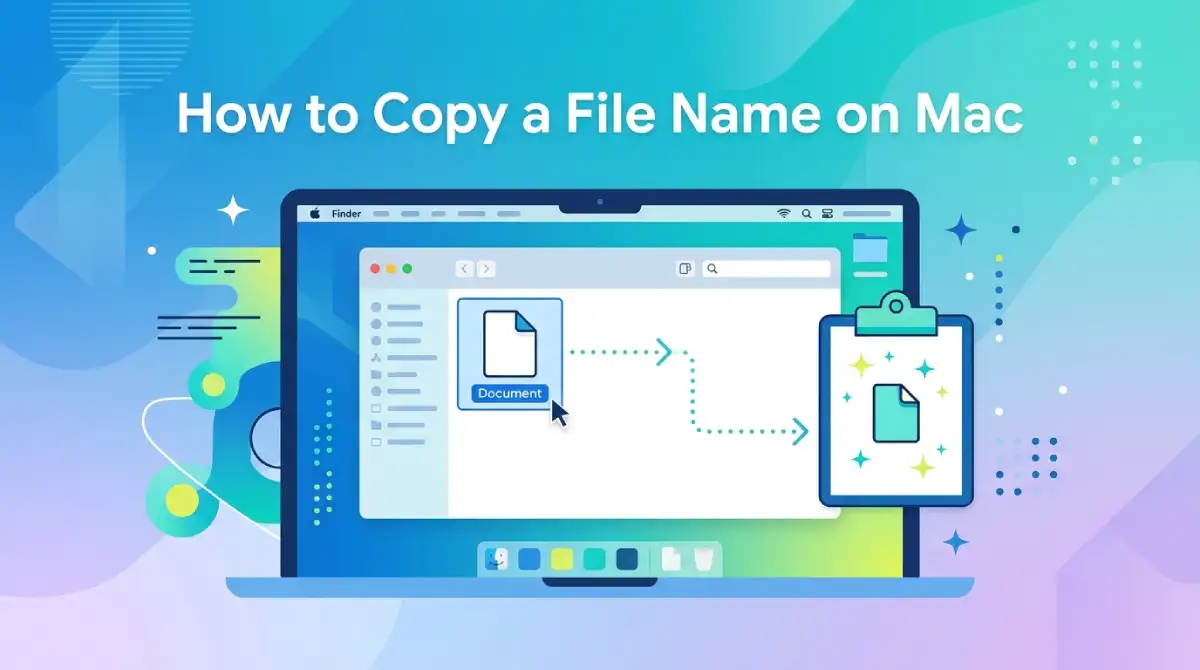
Finder makes this simple.
Select the file.
Press Return to enter rename mode.
Press Cmd+A, then Cmd+C.
Press Esc to cancel.
To copy the full location instead, select the file, hold Option, open the Edit menu, and choose Copy as Pathname.
How to Copy a File Name in Google Drive
Drive has no direct “copy name” command, so use the rename dialog.
Right-click the file and choose Rename.
Press Ctrl+A (or Cmd+A), then Ctrl+C (or Cmd+C).
Click Cancel.
If you duplicate a file in Drive, the new one is labeled “Copy of” followed by the original name.
How to Remove “Copy” From a File Name
Removing the suffix takes about ten seconds.
Select the duplicate.
Press F2 (Windows) or Return (Mac).
Delete the word “Copy” and any stray dash or space.
Press Enter.
A common snag: if another file already has that exact name in the same folder, your system won’t allow it. Either move one file to a new folder or add a version number or date, such as “Report_2026-10.”
Best Practices for Naming Duplicate Files
A messy folder full of “Copy of Copy of Copy” files wastes time and causes mistakes. These habits help.
Rename right after duplicating. Don’t leave the default suffix in place.
Use dates or version numbers. “Proposal_v2” is clearer than “Proposal – Copy.”
Avoid special characters. Slashes, colons, and asterisks can break file names on some systems.
Keep names short and descriptive. Aim for something you could understand in six months.
Use underscores or hyphens instead of spaces when files may be shared online or used in code.
Copying Names in Spreadsheets, Databases, and Code

Some tools have their own copy-name features.
Database tools: Some let you right-click an object and copy its name to paste into another application.
DBArtisan, for example, lets you copy object names and paste them elsewhere.
Spreadsheets: Use the formula bar or a TEXT function to pull a name into another cell.
Developer environments: Many editors offer “Copy path” or “Copy relative path” from the right-click menu.
If you often work with long lists of files, a small script or a batch-rename tool can save hours.
Final Thoughts
Copying a file name is a small task that trips up a lot of people. The trick is to enter rename mode first, select all, copy, and cancel. From there, cleaning up a “Copy” suffix takes seconds.
Build the habit of renaming duplicates immediately, and your folders will stay organized. If you work with large batches of files, consider a dedicated batch-renaming tool.
Frequently Asked Questions
How do I copy just the name of a file?
Select the file, press F2 (Windows) or Return (Mac), then press Ctrl/Cmd+A and Ctrl/Cmd+C. Press Esc to cancel the rename.
Why does my file say “Copy of” in front of the name?
Apps like Google Drive add a prefix or suffix when you duplicate a file, so the copy doesn’t clash with the original.
Can I stop Windows from adding “- Copy” to file names?
Not through a standard setting. Rename the duplicate after pasting, or paste into a different folder, where the original name can be kept.
How do I copy the full path of a file?
On Windows, Shift+right-click and choose Copy as path. On Mac, hold Option in the Edit menu and choose Copy as Pathname.
Can I copy multiple file names at once?
Yes, but only indirectly. Select the files, use Copy as path, paste into a text editor, and strip out the folder path.
Does renaming a copied file affect the original?
No. The duplicate is independent, so renaming it leaves the original untouched.

Emma Carter is a social media content writer and Instagram enthusiast who loves creating creative, stylish, and unique bio ideas. She helps Instagram users find the perfect words to express their personality, mood, style, and vibe.
At Bios4IG, Emma shares fresh Instagram bio ideas, captions, and profile inspiration designed to make your Instagram profile stand out.





No Comment! Be the first one.